


iOS 13 breathed a whole new life into the iPhone. Dark Mode on the iPhone was a long-awaited feature that both iOS and Android fans have eagerly anticipated. While more and more apps get their own dark mode, iPhone users can now darken the appearance of the user interface system-wide. We’ll show you how to activate the dark mode on iOS and which apps keep the display dazzlingly bright.
It wasn’t the first time that Apple has added a display feature that is supposed to be easy on the eyes, especially in the evening hours. With “Night Shift”, users of iOS devices already had the option of adjusting the blue and yellow components of the display to the lighting conditions depending on the time of day, thus putting a stop to the notorious blue light. Blue light has been proven to make people less tired when they stare at the display in the evening. By now, almost every manufacturer offers a so-called blue light filter on their smartphone to counteract this non-fatigue.
But the blue light filter doesn’t let the iPhone or iPad appear really dim in the evening, because the surface remains bright. Apple has now changed this with the new “appearance” feature under iOS 13. Owners of a mobile Apple device can choose between light and dark background. Depending on the background, app icons, lock screen, and the keyboard will appear brightly lit or dimly dark. The latter is especially worthwhile in the evening hours, when the surroundings are also darkened and a white display tends to dazzle.
The automatic planning is especially practical in the dark mode under iOS. In the display settings, you can decide whether you want to set the dark or light mode permanently or alternately. You can see what I mean in the images below:
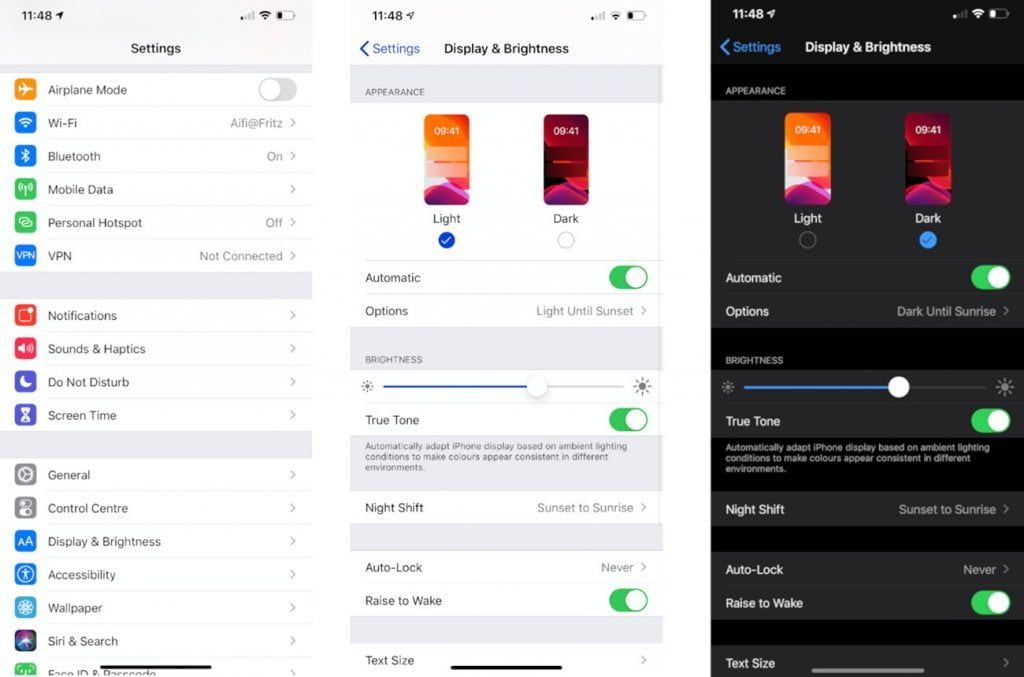
- Select Settings, then Display and Brightness.
- Under Appearance select Light or Dark.
- Select the button labeled Automatic to activate the dark mode at sunrise and sunset or according to an individual schedule.
This mode on the iPhone can also be quickly switched on or off within the control center. To do this, simply pull the screen down and hold the brightness slider down. The dark mode icon appears. Besides more eye-friendly surfing, you can also save battery with Dark Mode. How much the dark mode really does for the battery life, however, is up for debate.
As soon as you have activated Dark Mode, the iOS surface will appear nice and dark. Note, however, this mode does not work in WhatsApp and other third-party apps.


