


Earlier this year, Google rolled out its big Gmail redesign that included subtle elements of Google’s Material Design, and a number of new features that were originally introduced for Google’s Inbox overhaul of Gmail. While most of these features have long served the web version of Gmail, the Android app hasn’t gotten all the new Gmail tools. Today, Gmail has rolled out Confidential Mode to the Android App.
Good news is, you don’t have to waste any of your data to update to access the feature. Just take a sly in the menu, and you’ll see the feature. Its as if its been there all its life. So you can save a few Shillings, and redirect that money towards your next OTT Tax. Lol.
What’s the Gmail Confidential mode?
Using the Gmail Confidential Mode, you get to send emails that self-destruct after a given length of time. Abracadabra, and they self-destruct!

If the recipient uses Gmail, this process works seamlessly. Incoming messages look like typical emails, but when the expiration date arrives, the body text disappears. However, the email itself and the subject header will stay in the recipient’s inbox.
Gmail will send non-Gmail recipients an email containing a link, and a separate email or text message with a pass-code. They can follow the link and enter the pass-code to unlock your message. However, the link will stop working after the expiration date.
Self destructing messages make it painless to share private words or silly pictures without leaving a digital data trail. They technically a way of taking words back from the ‘Never Forgetting Internet”. However, Gmail Confidential Mode is not save from screenshots and screen recording software. So before you try your Desire Luzinda move, read the previous statement with CAPS LOCK on.
How to use Gmail Confidential Mode
- To send a self destructing email using Gmail Confidential mode in the Android app, start composing a new email like you always have.
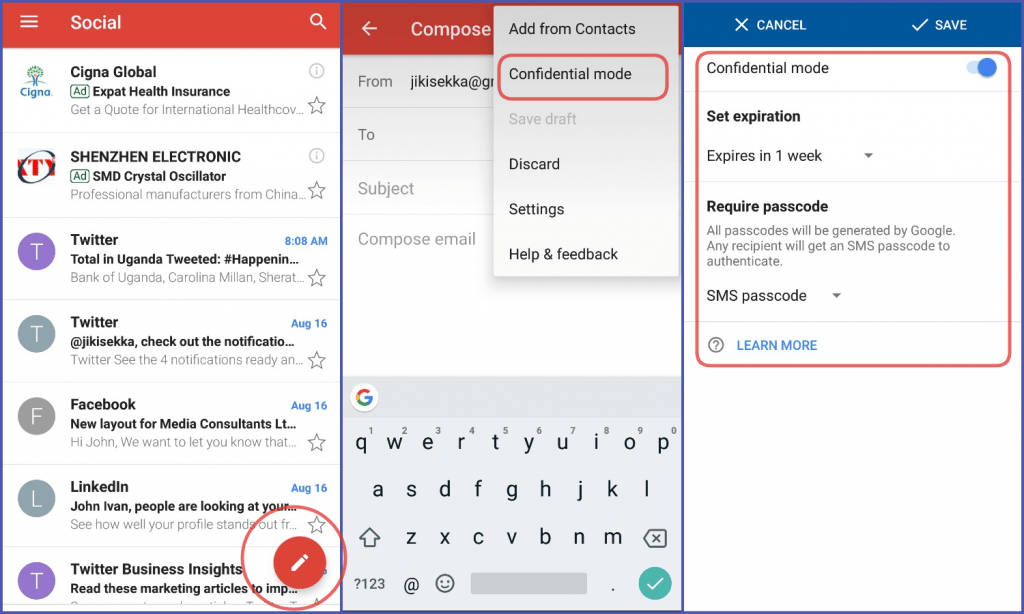
- Click the overflow menu to access the new option called “Confidential mode.”
- After selecting that, Gmail asks you to choose an expiration time and whether or not a passcode is required to open the message.
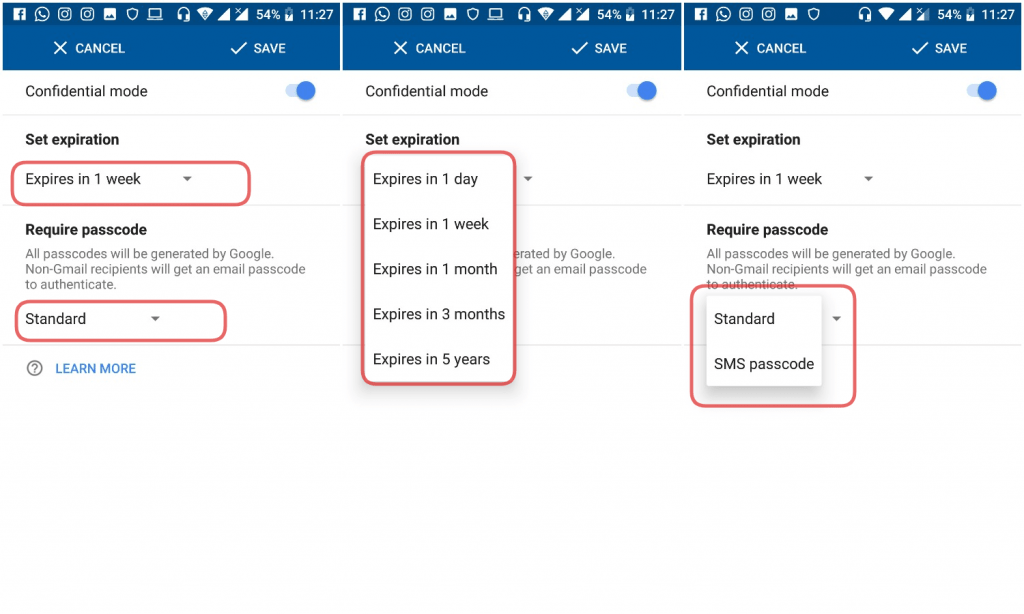
- You can always change your mind and remove or alter the confidential settings before sending the email.
So what are you waiting for? Make those emails disappear already!


