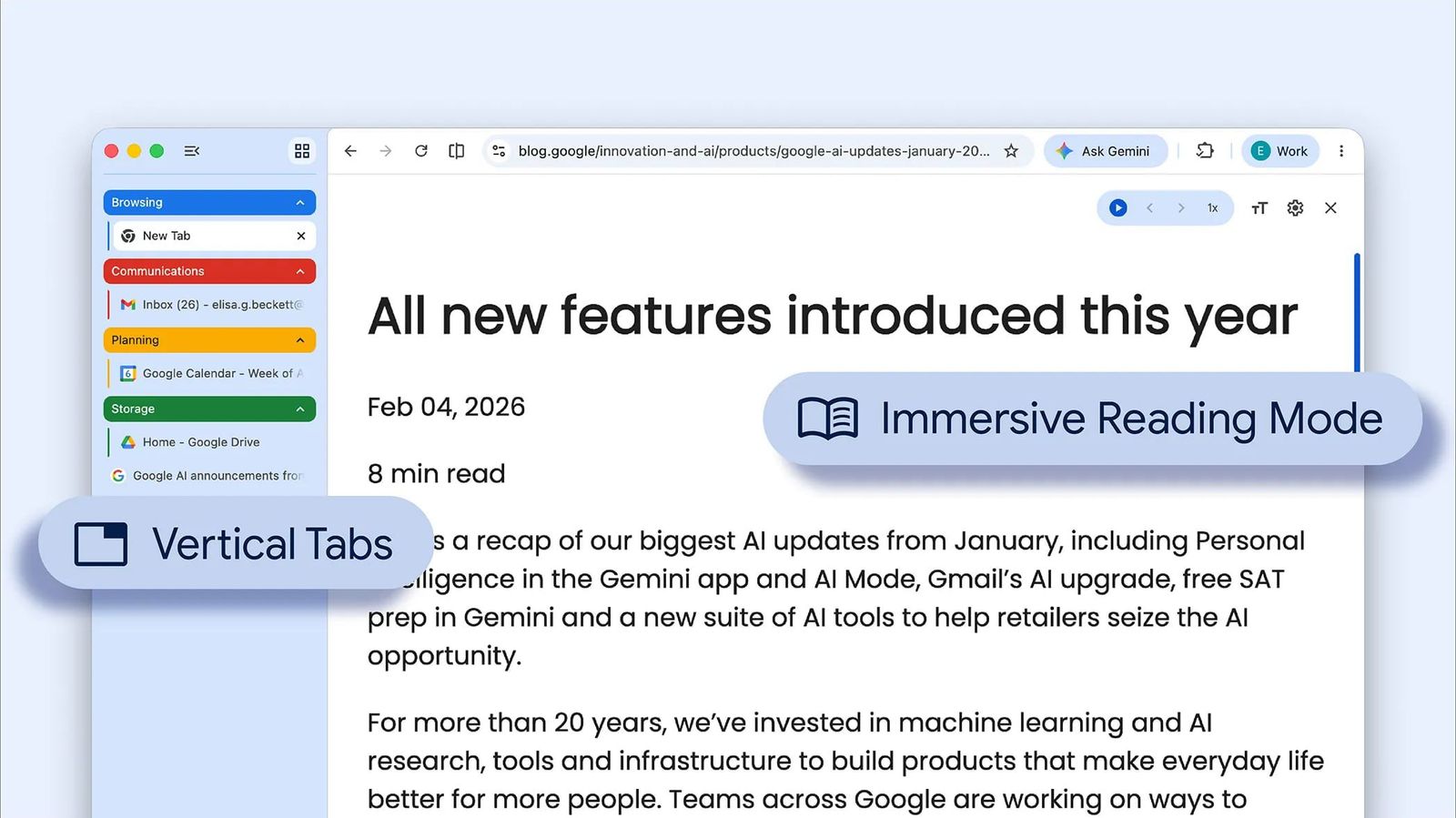


Google Chrome has long been criticized for its horizontal tab bar that quickly becomes a cluttered mess of tiny favicons and truncated titles. The tech giant addressed this pain point head-on with the official rollout of two powerful desktop features: native vertical tabs and a fully immersive reading mode. These updates mark a significant step toward making Chrome more intuitive, organized, and distraction-free for millions of users worldwide.
No longer confined to experimental flags in Canary or Beta channels, these enhancements are now gradually arriving in the stable version of Chrome (starting with builds around version 146). The changes cater directly to power users, researchers, students, and professionals who spend hours navigating information overload. By borrowing smart design cues from competitors while adding Google’s signature polish, Chrome is finally catching up and in some ways, pulling ahead in the productivity browser wars.
Vertical tabs transform browser navigation

For years, Chrome users have pleaded for vertical tabs. Horizontal layouts work fine for casual browsing, but once you exceed 10 or 15 tabs, titles vanish, and switching between them feels like a guessing game. Vertical tabs solve this elegantly by shifting the entire tab strip to a dedicated sidebar typically on the left side of the window freeing up valuable horizontal real estate on modern widescreen monitors and laptops.
The implementation is refreshingly simple and seamless. To activate it, users simply right-click anywhere on the Chrome window (or the tab bar area) and select “Show Tabs Vertically.” Instantly, the familiar top tab row disappears, replaced by a clean vertical list where full page titles are displayed in their entirety. Tab groups integrate perfectly here: color-coded groups stack neatly in the sidebar, making it effortless to organize work projects, research rabbit holes, or shopping carts.
One of the standout perks is the ability to collapse the sidebar into a slim column of favicons only. This minimalist view maximizes screen space for the actual webpage content without sacrificing quick access, hover over an icon, and the full title pops up. Power users will appreciate how this layout reclaims vertical space, especially on content-heavy sites where scrolling is the norm. Early hands-on reports describe it as transformative for heavy multitaskers who previously relied on third-party extensions or clunky workarounds.
Switching back is just as easy: right-click again and choose the option to return tabs to the top. The feature doesn’t require restarts in most cases once rolled out to your installation, and it works alongside existing Chrome tools like tab search and pinning. Testers report it reduces cognitive load dramatically, no more squinting at microscopic labels or accidentally closing the wrong tab.
Google’s product managers emphasized in the announcement that these changes stem from years of user feedback. Vertical tabs aren’t just cosmetic; they’re a direct response to the reality of modern web usage, where tabs serve as temporary bookmarks for everything from email threads to live dashboards.
Immersive reading mode
While vertical tabs tackle organization, the revamped immersive reading mode targets focus. Chrome’s original Reading Mode has been a quiet favorite for stripping away ads, sidebars, and pop-ups on cluttered news articles or blog posts. Now, it evolves into a true full-page immersive experience that transforms the entire browser window into a clean, text-centric canvas.
Activation is intuitive: right-click on any webpage and select “Open in reading mode,” or look for the dedicated icon that may appear in the address bar on eligible pages. Gone is the previous side-panel view that forced users to split their attention. Instead, the page expands to fill the screen, removing virtually all visual noise ads, videos, navigation menus, and social sharing buttons while preserving essential text, links, and images where they enhance readability.
Customization options elevate the experience further. From the top-right corner, users can adjust font styles and sizes, tweak line and letter spacing, switch between light and dark themes, and even enable text-to-speech for hands-free listening. This makes it ideal for long-form content like research papers, in-depth journalism, or e-books hosted on the web. The mode builds on Chrome’s existing reader capabilities but delivers what feels like a dedicated reading app within the browser.
Reviewers highlight how this upgrade brings Chrome in line with (and sometimes surpasses) dedicated tools in other browsers, particularly for users who bounce between tabs and articles frequently. Paired with vertical tabs, it creates a powerful workflow: organize your research in the sidebar, then dive into each source distraction-free.
Availability, rollout, and troubleshooting tips
These features are rolling out gradually to desktop users on Windows, macOS, Linux, and ChromeOS, no mobile support yet. If you haven’t seen them yet (as of mid-April 2026), ensure Chrome is fully updated by navigating to chrome://settings/help. The server-side rollout means patience may be required, but most users should have access within days or weeks.
For those eager to jump ahead, the features were previously testable via chrome://flags by searching for “Vertical Tabs” or related reading mode experiments. However, the native rollout makes flags unnecessary for the vast majority. Pro tip: if the right-click menu doesn’t show the options immediately after updating, restart the browser or check for any conflicting extensions.
Both features are designed to coexist harmoniously. You can have vertical tabs active while entering immersive reading mode on any open page, no toggling required.
Why these changes signal Chrome’s productivity evolution
In a browser landscape dominated by tab overload, studies suggest the average user has over 20 tabs open at any time, these updates address real usability friction. Vertical tabs promote better visual scanning and reduce errors, while immersive reading combats the modern web’s attention economy of endless distractions. Together, they position Chrome not just as a fast renderer but as a thoughtful productivity hub.
Critics have long argued that Chrome’s dominance came despite, not because of, its tab management. By adopting vertical tabs after competitors pioneered them, Google demonstrates responsiveness to user demands. This could slow the migration to alternative browsers where similar features have been staples.


