


On January 6th, WhatsApp users around the world began seeing a pop-up message notifying them of upcoming changes to the service’s privacy policy. This led to the rise of other messaging platforms like Signal and Telegram.
Telegram is one of the feature-packed messaging services out there, armed with some great feature that put its rivals to shame when it comes to functionality. While basic Telegram features like the ability to edit messages after sending them are well known, here are some lesser-known, yet incredibly useful things the app can do that could come in quite handy.
Here are 10 Telegram features you might not have known, and how to use them.

ALSO READ: WhatsApp is struggling to retain users from switching to Telegram and Signal
1. Scheduled and Silent messages
Telegram allows you to schedule messages to be sent at a particular time. Further, you can also send ‘silent’ messages without sound when you do not want to disturb the receiver. This can be ideal when you want to send your boss a message, while you know he/she is in a meeting or when you want to send a friend something important when they’re out with their family.
To schedule and send silent messages, users can simply type out their messages, but long tap on the send button instead of simply pressing it. This will show you the schedule and silent message options.
2. Live location & proximity alerts
Telegram users can send each other live locations just like WhatsApp. Live locations allow the receiver to track the sender in real-time for a set amount of time when they’re on the move. However, with Telegram, both parties can also set proximity alerts. These are mini-alerts that will ring when another user gets close. You can, for instance, set up a proximity alert for when your friend gets within a 50-meter radius of you at the mall, so you can start looking for them around you.
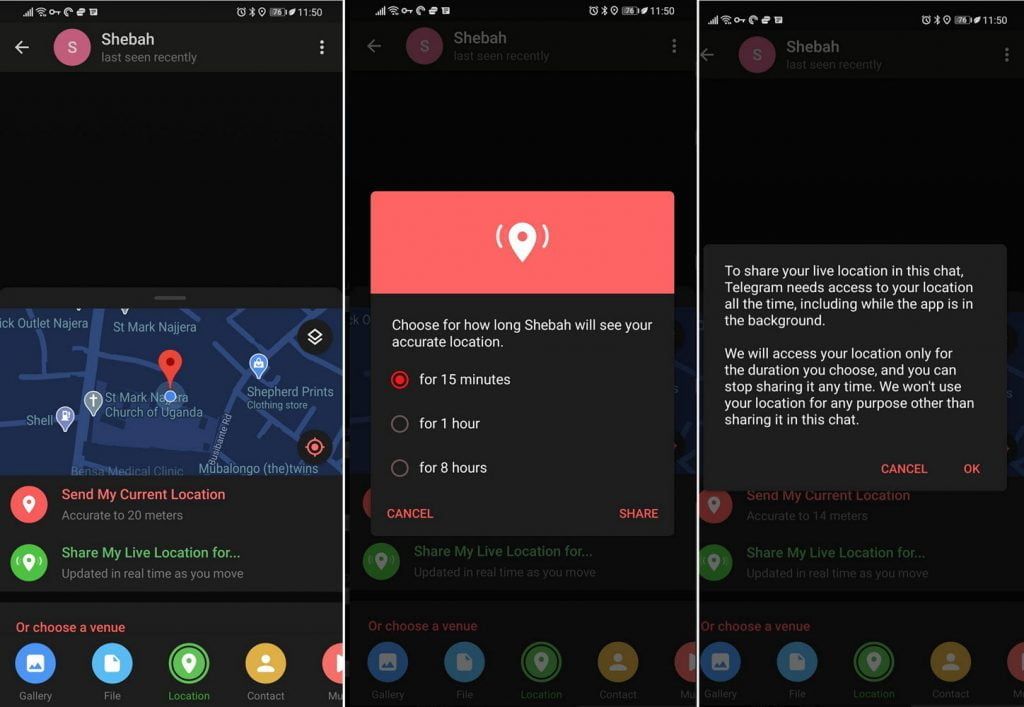
To use live locations and proximity alerts, go to the contact’s chat window and tap on the ‘Attach’ icon shaped like a paperclip. Choose the location button here, and choose ‘Share my Live Location’. You will be able to send live locations for either 15 minutes, 1 hour or 8 hours.
3. Edit and replace pictures while sending
Sent a picture without adding your usual filter or marking the text you wanted to highlight? Sent the wrong picture altogether? Telegram can help you out. The app allows users to edit photos and even replace them after you have sent it.
To do this, long-press on a picture you have sent. Choose the ‘Edit’ button on the top, just like you’d edit a text message once you have sent it. Now, you will get an in-built photo editor where you can add filters, draw or crop images. Alternatively, you can even replace the picture and send another one in its place.
4. Custom themes
Telegram allows you to customize your app interface to your liking. To achieve that, users can choose from a number of themes and color combinations in the app. These will change elements like the colors of chat backgrounds and messages too.

To do this, head over to Telegram’s settings by sliding over the hamburger menu from the left of the app. Here, choose ‘Settings’ and then click on ‘Chat Settings’. In this menu, you will see a number of themes and color options to choose from. Further, you can also change the curve on message boxes and font size.
5. Keep Alive
Depending on what Android skin your phone uses and how much RAM you are usually left with to spare, Android’s algorithms may close Telegram and other apps in the background, delaying your new message notifications till when you open the app again manually.
If you do not want this to happen and want Telegram to keep running in the background to send you notifications in real-time, you can head over to Settings/ Notifications and Sounds/ Keep Alive Service and turn it on.
6. Unlimited personal cloud storage
Telegram has a personal ‘Saved Messages’ space for each user. This is accessible from the left hamburger menu on the main screen. Users can save important messages here which will be backed up on Telegram’s secure cloud just like your chats. The Saved Messages space can then be accessed across you’re your phone, laptop and any other device where your account is logged in.
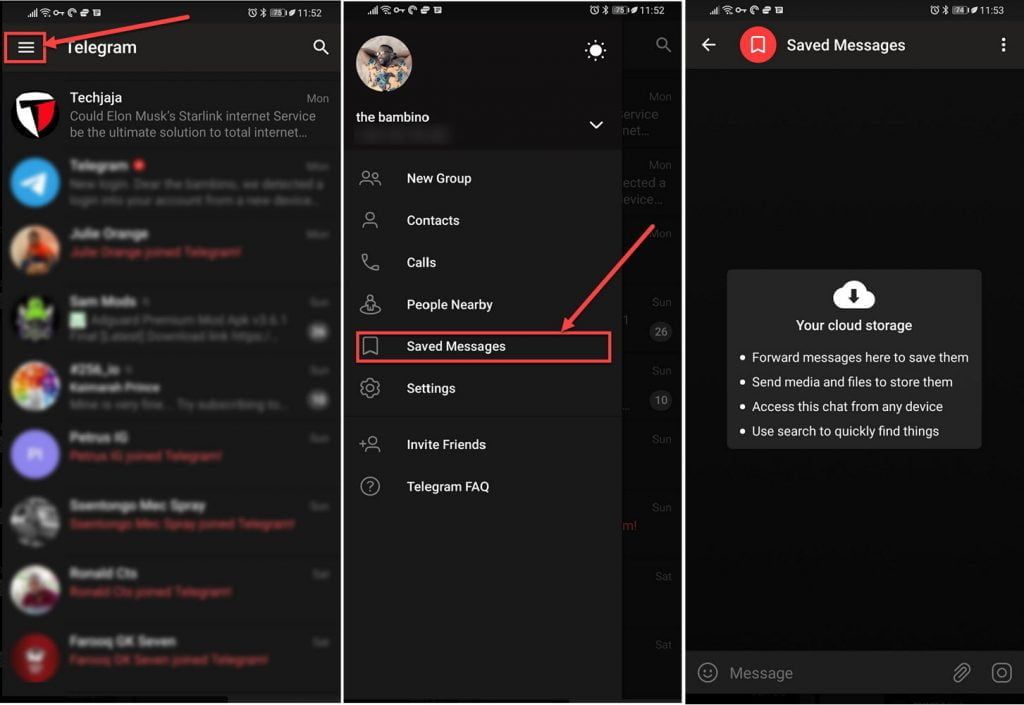
Unlike other cloud-based solutions, Telegram’s personal space has infinite storage. You can also send all kinds of files here. However, note that each file you send must be sized lesser than 1.5GB.
7. Group Voice chats
A recently introduced feature, Telegram’s new Group Voice Chats allow users in a group to initiate a common group voice chat for all members. However, users can choose to drop out of the ongoing group chat and re-enter at any given point. To make use of this, head into any group of choice and tap on the group name. Now head to the three-dot menu on the top right and choose Start Voice Chat.
8. Locate users near you
Telegram allows users to locate contacts nearby you, should they choose to be discovered. This allows you to quickly add someone close to you on Telegram without going through the hassle of first noting their number and saving the contact manually. Users can also use this feature to find and create groups of nearby users.

9. Animated Emojis
The standard emojis on Telegram can be presented in an animated avatar to further enhance their emotional value. These are different from GIFs you send in the app. To enable animated emojis, head over to Settings/Chat Settings/ Large Emojis.
10. Chat folders
Telegram allows you to classify all your chats into various folders. This lets you deal with a group of chats at a time and avoid others when they are not important. For instance, you could set a group to include all chats from your work colleagues and another to manage your personal social circle.
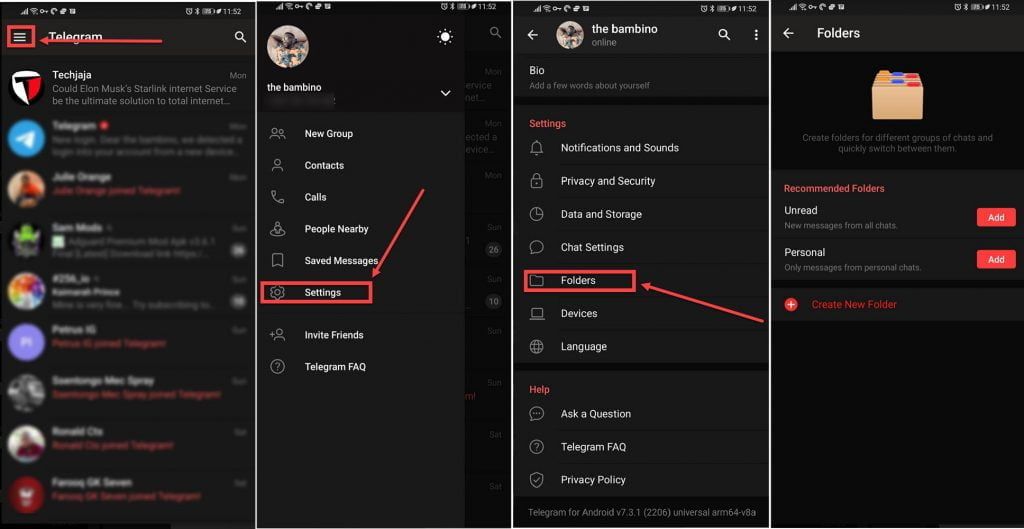
To do this, head over to Telegram settings and choose ‘Folders’. Here you can create as many folders as you want and add both personal chats as well as groups and channels to any of the folders. You can also order the folders you just created, but note that the default ‘All chats’ folder will always be the first one.


